



Change Data Capture (CDC) is a powerful technique used to capture and track changes made to a database in real time. CDC makes it possible to create up-to-the-second views of dimensional tables and provides a way to share the contents of relational database tables that continually change without affecting the performance of the database server. This is especially valuable when integrating MySQL OLTP systems with ClickHouse® OLAP systems for analytics, including managed MySQL variants like Aurora MySQL. For an overview of the motivations and use cases for CDC in real-time data pipelines, read this post.
In this post, you'll learn how to build a real-time MySQL CDC pipeline using Confluent Cloud and Tinybird.
In this guide, you’ll learn how to build a real-time pipeline using MySQL as a source database, Confluent Cloud as both the generator and the broadcaster of real-time CDC events, and Tinybird’s real-time data platform that consumes change streams, enables real-time SQL-based processing on those streams, and exposes results as low-latency APIs. Here, Tinybird will be used to provide an endpoint that returns current snapshots of the MySQL table.
For this tutorial, I will be hosting a MySQL database on Amazon Web Services (AWS) Relational Database Service (RDS), setting up a Debezium-based Confluent MySQL CDC Connector, and publishing the CDC events on a Confluent-hosted Kafka topic. On the other end of that stream is a Tinybird Data Source collecting those events and storing them in a columnar database optimized for real-time analytics.
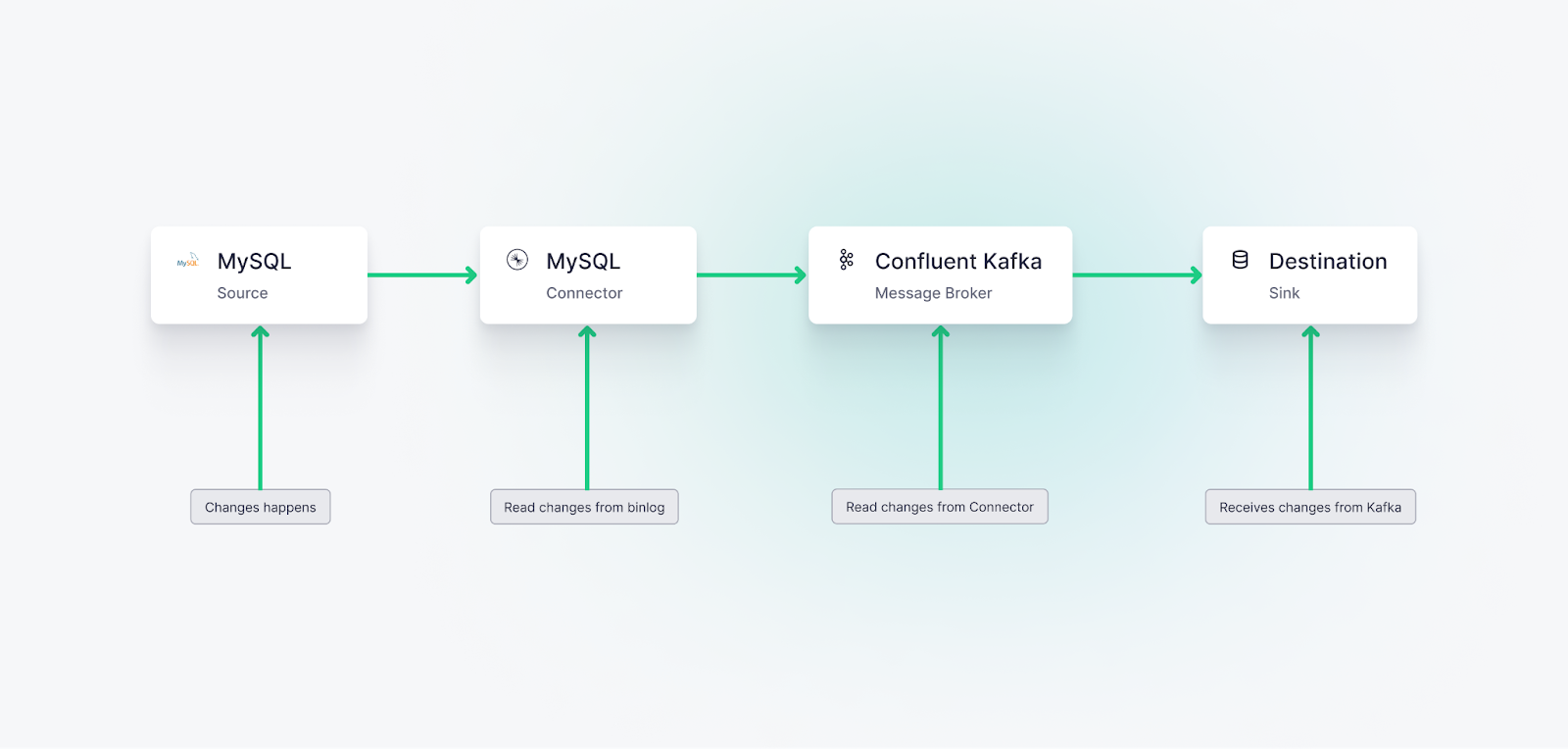
Why does Tinybird make sense in this scenario? Tinybird is a perfect destination for CDC event streams, as it can be used to both run real-time analytics on the event streams themselves and create up-to-the-second views or snapshots of the MySQL tables. In either case, you can publish your pipelines as real-time APIs that downstream consumers can access on demand.
Tinybird is the ideal destination for change data streams, as you can use it to build real-time data pipelines over change data using nothing but SQL.
How does CDC work with MySQL?
Change data capture with MySQL is enabled by MySQL’s Binary Log (binlog). The MySQL binlog is part of MySQL's built-in replication mechanism, and it maintains a rolling record of all data-manipulating operations. When an operation such as an insert, update, or delete occurs in MySQL, the change is recorded in the binlog.
Change data capture with MySQL is enabled by its binlog, a part of MySQL's built-in replication mechanism.
CDC processes monitor this binlog, capturing the changes as they occur. These changes can then be propagated to other systems or databases, ensuring they have near-real-time updates of the data. For this guide, we will be using the Confluent MySQL CDC Source Connector to read CDC events from the binlog in real time and write those events to a Kafka stream. This connector auto-generates a Kafka Topic name based on the source database schema and table name.
Setting up the CDC data pipeline from MySQL to Tinybird
There are six fundamental steps for setting up the CDC event stream:
- Step 1: Confirm MySQL server is configured for generating CDC events.
- Step 2: Set up a Confluent Cloud cluster.
- Step 3: Set up the Confluent Cloud MySQL CDC Connector.
- Step 4: Install and Set up Tinybird.
- Step 5: Connect Tinybird to Confluent Cloud and Create a Data Source.
- Step 6: Handle Deduplication for CDC at Scale.
- Step 7: Use SQL to Analyze MySQL Change Data Streams.
Prefer a CLI?In the following tutorial, I’m using Confluent Cloud’s and Tinybird’s browser UIs, but it’s possible to achieve this same workflow with the CLI. If you prefer a CLI workflow, you can check out these posts for CDC on MongoDB or Postgres and apply the MySQL details to those workflows.
Step 1: Confirm MySQL server is configured for generating CDC events
First, confirm that your host database server is set up to generate CDC events, and update configuration details if needed. You will need admin rights to make these changes or define a new user with CDC-related permissions.
This guide was developed with Confluent Cloud, and its MySQL connector depends on a couple of MySQL server configuration settings:
- By default, the generation of CDC events is enabled. You can confirm that this feature is enabled with this query:
SHOW VARIABLES LIKE 'log_bin'. If thelog_binis set toON, you are all set. If not, update the value toON. - This connector requires that the MySQL
binlog_formatis set toROW. Check the server setting withSHOW VARIABLES LIKE 'binlog_format'and update the value if needed.
For more information on configuring the MySQL server for CDC, see this Debezium guide.
Step 2: Set up a Confluent Cloud cluster
Next, you need to create a new streaming cluster on Confluent and an environment if you don’t already have one.
Sign up for a Confluent Cloud account if you haven't done so already.
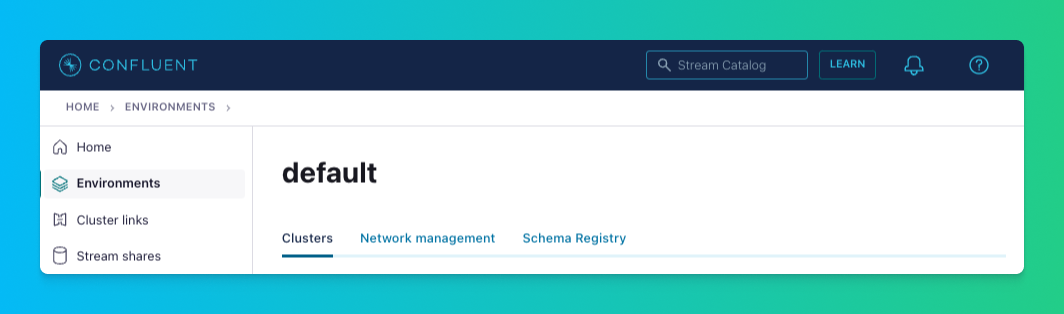
Once you’ve signed up, create a new environment. By default, your initial environment will be named default, and I’ve written this guide assuming you keep the default. Adjust as needed.
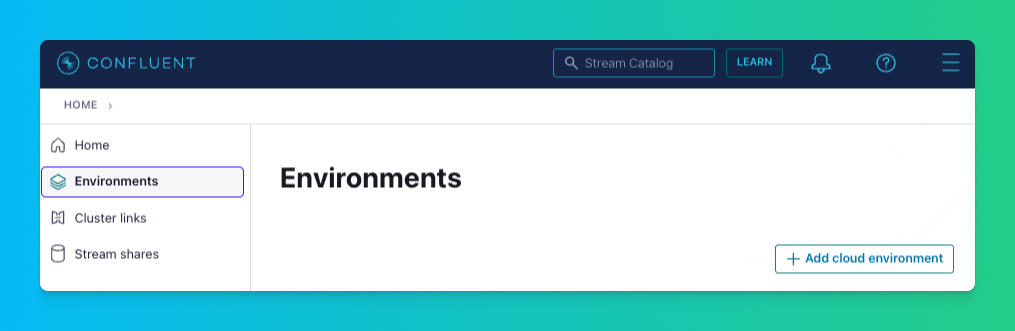
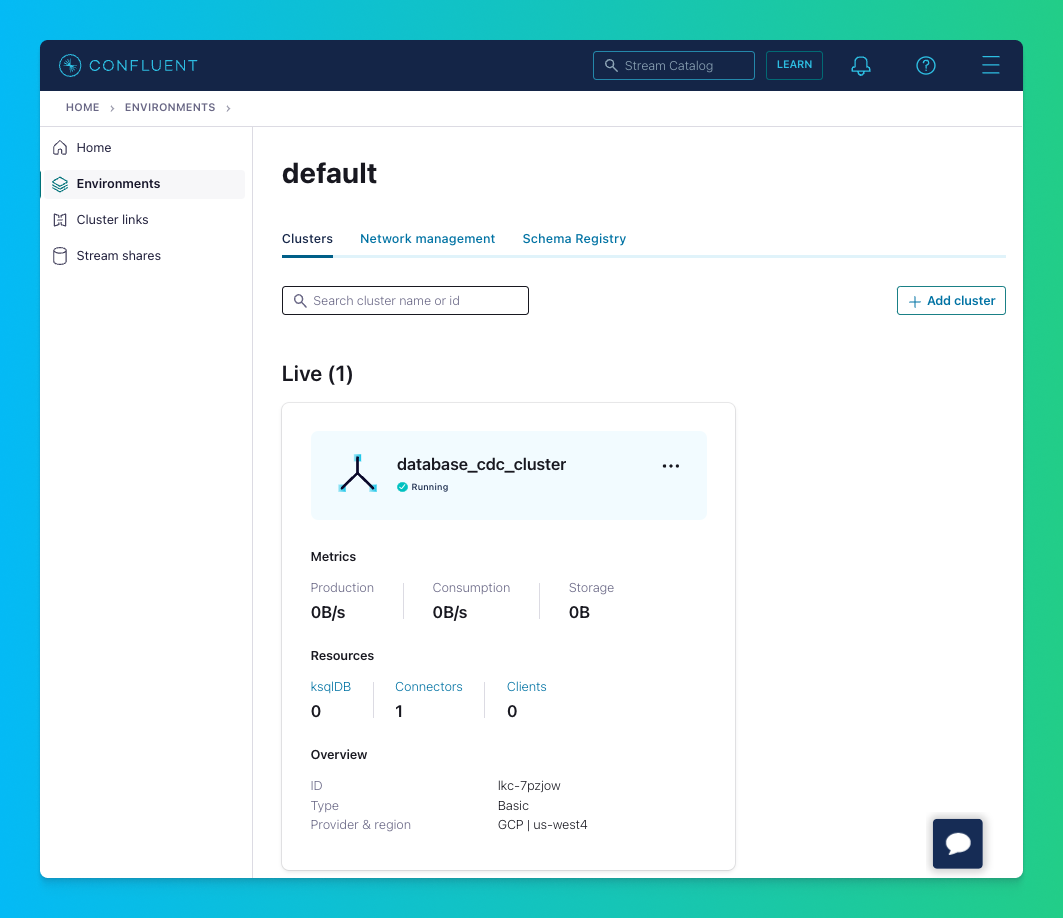
Next, create a new Kafka cluster within that environment and assign it a name. The cluster name will be needed for the Tinybird connection configuration.
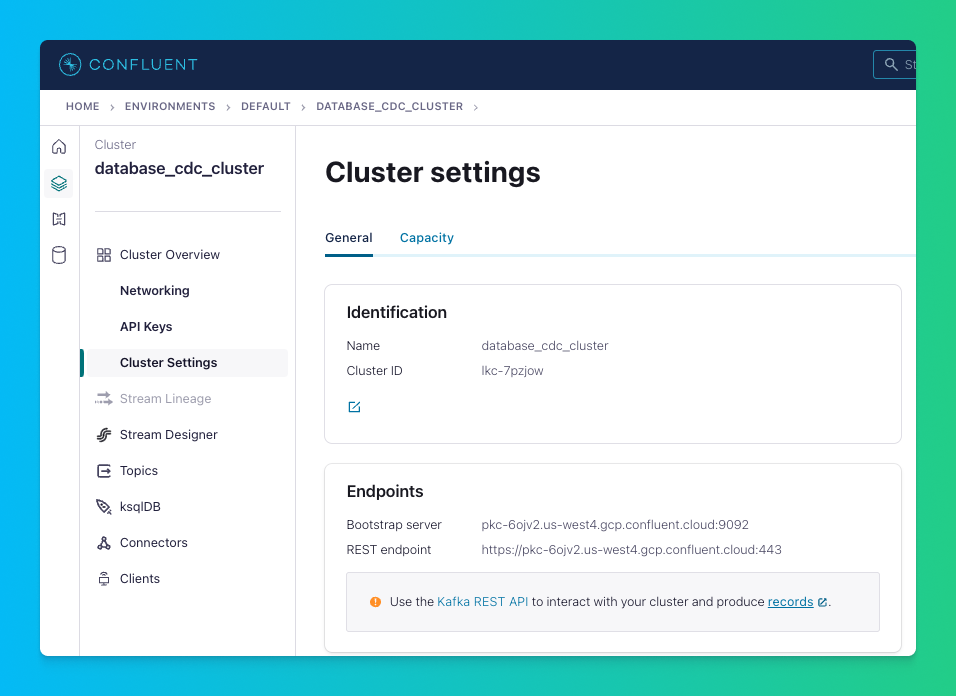
Select the cluster you just created and click “Cluster Settings.” Take note of the cluster’s bootstrap server, and create and store an API Key and Secret. You'll need these in Step 4 to configure the Tinybird Confluent Connector (and any other script or tool using the Confluent APIs), so make sure you save them.
Step 3: Set up Confluent Cloud MySQL CDC Connector
Next, you need to set up the Debezium-based CDC connector that will generate CDC events for the MySQL database to which it’s connected. The connector acts as the source of the CDC events written to the Kafka-based stream.
Here we are using the Confluent MySQL CDC Source Connector, which is built on Debezium. This will connect to your database server, capture data changes from the binlog, and write change data events to a Confluent topic. The Connector will auto-generate a topic name based on your database, schema, and table names.
The Connector’s configuration wizard walks you through the steps to authenticate with the stream, select the databases and tables for which you want to capture change data, and choose the correct sizing options.
First, select the cluster you want the CDC events to be sent to.
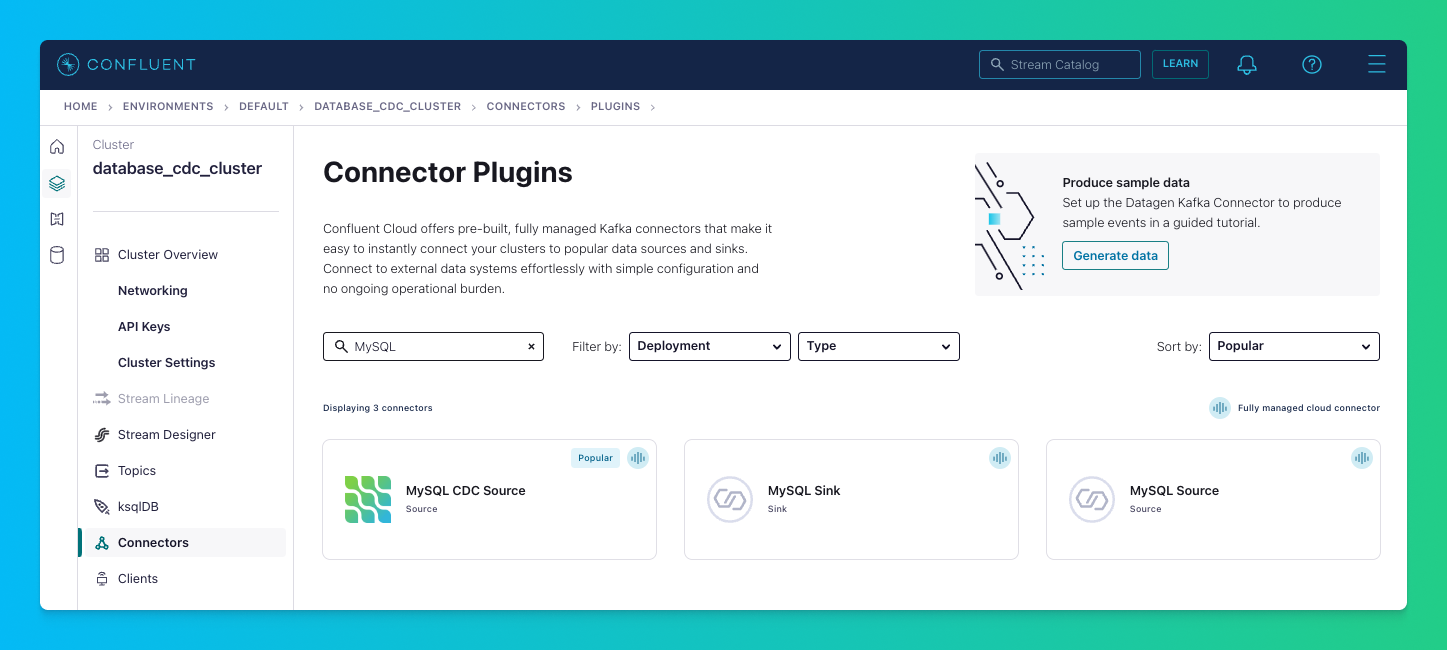
Then, click on the “Connectors” section in the left navigation pane and click the “Add Connector” button, search for the “MySQL CDC Source” Connector, and select it.
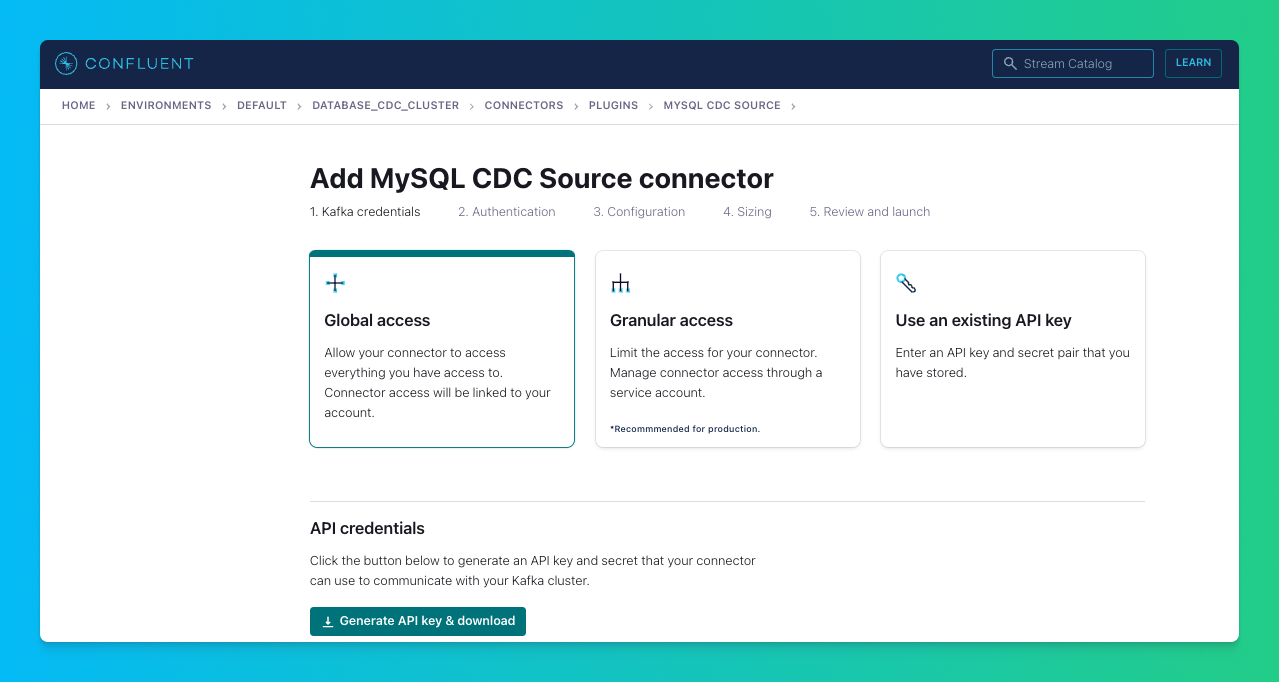
Select “Global access” and hit “Continue”.
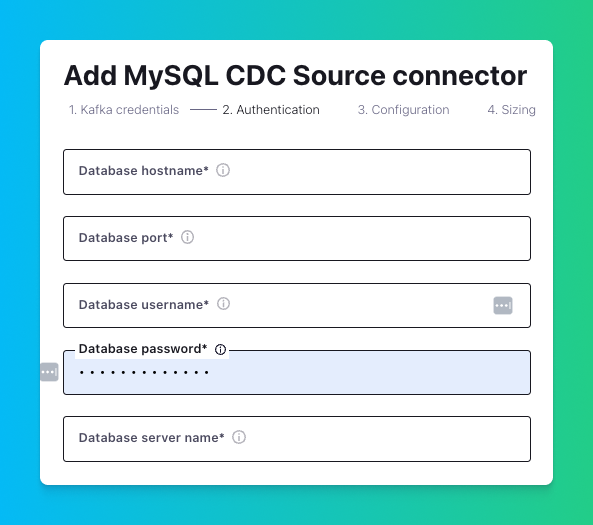
Configure the Connector with database details, including database host, port, username, and password.
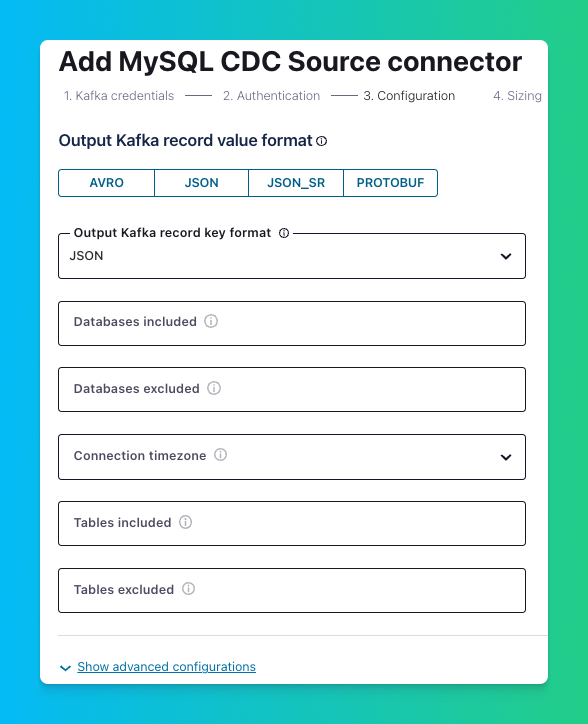
After setting up the database connection, you’ll need to configure the Connector. This includes selecting the Connector’s output format.
For sending the data to Tinybird, we’ll use the convenient JSON format. To do that, confirm that the “Output Kafka record value format” and the “Output Kafka record key format” are both set to JSON.
Here you can also select the databases and tables for which to generate CDC events. First, select the databases you want to include (and exclude) by providing a comma-delimited list of MySQL database names. Second, select what tables to include (and exclude) by referencing the MySQL schema to which they belong using a comma-delimited list of <schema-name>.<table-name> strings.
When you’re done, hit “Continue”.
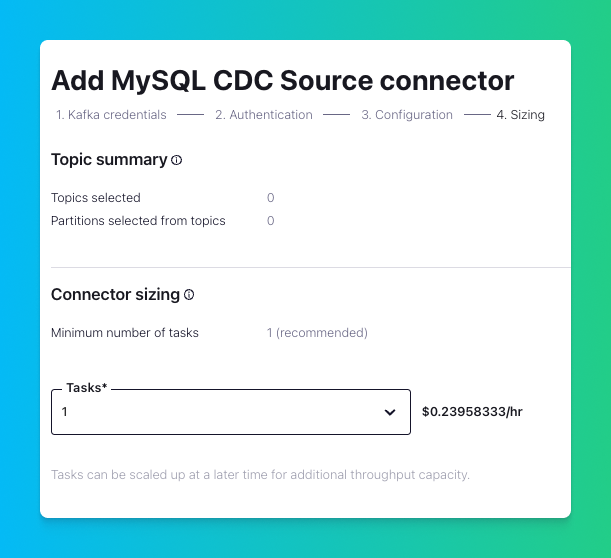
To wrap up, select a “Connector sizing” (for this tutorial, 1 task is sufficient), and hit “Continue”.
Name the Connector and press “Continue” one more time, and your MySQL CDC Connector is now created!
Once you finish the Confluent Connector configuration, you should start seeing messages in your topic in the UI (assuming your MySQL instance is actively being changed).
The MySQL CDC Source Connector publishes these events in a Kafka Topic with an auto-generated name. The naming pattern uses <MYSQL_SERVER_NAME>.<MYSQL_SCHEMA_NAME>.<TABLE_NAME>
Note these Topic naming details, since you will need the Topic for configuring the Tinybird Confluent Connector.
Once created, the Connector will be displayed in the “Connectors” section and can be selected if you need to update its configuration or review the way it processes change events.
Step 4: Install and Set up Tinybird
Before connecting Confluent to Tinybird, you need to install the Tinybird CLI and authenticate with your account. You can set up the Kafka Connector using either the Tinybird UI or CLI. This guide covers both approaches, starting with the CLI method for a more hands-on technical workflow.
Install Tinybird CLI
First, install the Tinybird CLI on your machine:
```bash curl -L tinybird.co | sh ```This installs the Tinybird CLI tool and sets up Tinybird Local for local development. For more installation options, see the Tinybird installation guide.
Authenticate with Tinybird
Next, authenticate with your Tinybird account:
```bash tb login ```This command opens a browser window where you can sign in to Tinybird Cloud. If you don't have an account yet, you can create one during this process. After signing in, create a new workspace or select an existing one.
For a complete quick start guide, see Get started with Tinybird.
Step 5: Connect Tinybird to Confluent Cloud and Create a Data Source
With CDC events being published to a Kafka stream in Confluent, your next step is connecting Confluent and Tinybird. This is quite simple using the Tinybird Kafka Connector, which will securely enable Tinybird to consume messages from your Confluent topic stream and write them into a Data Source.
The Kafka Connector is fully managed and requires no additional tooling. Simply connect Tinybird to your Confluent Cloud cluster, choose a topic, and Tinybird will automatically begin consuming messages from Confluent Cloud. As part of the ingestion process, Tinybird will extract JSON event objects with attributes that are parsed and stored in its underlying real-time database.
You can set up the Confluent Connector using either the Tinybird UI or CLI. In this guide, I’ll be using the UI.
Create a Kafka connection
First, create a connection to your Confluent Cloud Kafka cluster using the Tinybird CLI. You'll need the bootstrap server, API key, and secret that you saved from Step 2.
Run the following command to create the connection:
```bash tb connection create kafka \ --bootstrap-servers BOOTSTRAP_SERVER \ --key API_KEY \ --secret API_SECRET \ --connection-name confluent_connection ```Replace the placeholders with your actual values:
<BOOTSTRAP_SERVER>: The bootstrap server address from your Confluent Cloud cluster settings (e.g.,pkc-xxxxx.us-east-1.aws.confluent.cloud:9092)<API_KEY>: The API key you created in Step 2<API_SECRET>: The API secret you created in Step 2confluent_connection: A name for your connection (you can choose any name)
If your Confluent Cloud cluster uses a CA certificate, you can add it using the --ssl-ca-pem argument:
Create a Kafka Data Source
Now, create a Data Source that will consume messages from your Kafka topic. You can use the guided CLI process or create the files manually.
Option 1: Use the guided CLI process (recommended)
Run the following command to start the guided process:
```bash tb datasource create --kafka ```The CLI will prompt you to:
- Select or enter the connection name (use the name you created above, e.g.,
kafka_connection) - Enter the Kafka topic name (this is the auto-generated topic name from Step 3, following the pattern
<MYSQL_SERVER_NAME>.<MYSQL_SCHEMA_NAME>.<TABLE_NAME>) - Enter a consumer group ID (use a unique name, e.g.,
mysql_cdc_consumer) - Choose the offset reset behavior (
earliestto read from the beginning, orlatestto read only new messages)
Option 2: Manually create the Data Source files
Alternatively, you can manually create a .datasource file. First, create the connection file if you haven't already. Create a file named connections/kafka_connection.connection:
Then, create a Data Source file (e.g., datasources/mysql_cdc.datasource) that references this connection. Replace the placeholders with your actual values:
Replace <MYSQL_SERVER_NAME>.<MYSQL_SCHEMA_NAME>.<TABLE_NAME> with the actual topic name from Step 3.
The default schema stores the entire message in a data column. You can use JSONPath expressions to extract specific fields into separate columns at ingest time. For example:
- Sign up for a free Tinybird account
- Create a Tinybird Workspace (you’ll be prompted to do this after setting up your account).
Once you’ve completed these two steps, you can create the Confluent connection by clicking “Add Data Source” (or using the P hotkey). From there, select “Confluent” and enter the following details that you saved from Step 2:
- Bootstrap Server
- Key
- Secret
- Connection Name
With the connection created, you can select the Kafka topic that contains your CDC event streams from the connector and choose an ingestion modality (Earliest/Latest). Tinybird will analyze the incoming data from the topic, map the data into table columns, and guess the schema for your Data Source. You can modify the schema and select/deselect columns as you’d like.
Deploy the Data Source
After creating your connection and Data Source files, deploy them to Tinybird Cloud:
```bash tb --cloud deploy ```You can also validate the setup before deploying by running:
```bash tb --cloud deploy --check ```This will verify that Tinybird can connect to your Kafka broker with the provided credentials.
Once deployed, Tinybird will automatically begin consuming messages from your Confluent topic, and you'll start seeing MySQL change events stream into your Data Source as changes are made to the source data system.
Once you’re happy with the Data Source, click Create Data Source, and you will start seeing MySQL change events stream into your Data Source as changes are made to the source data system.
Step 6: Handle Deduplication for CDC at Scale
When working with CDC at scale, deduplication is essential. CDC streams can produce duplicate events due to network retries, connector restarts, or Kafka consumer rebalancing. Without proper deduplication, you'll end up with multiple versions of the same record, leading to incorrect analytics and data inconsistencies.
For CDC pipelines at scale, you need to implement deduplication strategies. Tinybird provides several approaches:
- ReplacingMergeTree engine: Use this for simple deduplication based on a primary key and version column. This works well for most CDC use cases.
- Lambda architecture: For more complex scenarios where you need to aggregate over deduplicated data, use a lambda architecture pattern that combines real-time and batch processing.
- Query-time deduplication: For prototyping or small datasets, you can deduplicate at query time using SQL functions like
argMax.
For detailed guidance on implementing deduplication strategies for CDC, see the Deduplication Strategies guide. For handling aggregations over deduplicated CDC data, see the Lambda Architecture guide.
Step 7: Use SQL to Analyze MySQL Change Data Streams
The final step in this tutorial is to do something with those change data streams from MySQL. With Tinybird, you can query and enrich your CDC streams using SQL and then publish your queries as real-time APIs.
In Tinybird, you do this with Pipes, which are chained, composable nodes of SQL that simplify the query-building process.
For example, let’s build an API that consolidates the change stream data into an incremental real-time view of the MySQL source table.
To do this, we’ll use Tinybird’s Materialized Views and the ReplacingMergeTree engine to deduplicate records.
First, create a Pipe file to select the desired columns from the Data Source. Create a file named pipes/deduplicate_mysql.pipe:
Then, create a Materialized View Data Source file that uses the ReplacingMergeTree engine to deduplicate records. Create a file named datasources/mysql_deduplicated.datasource:
The ReplacingMergeTree engine deduplicates rows with the same id based on the updated_at value. The ENGINE_VERSION setting specifies which column to use for versioning. Here's the complete Materialized View file:
The ReplacingMergeTree engine deduplicates rows with the same id based on the updated_at value. The ENGINE_VERSION setting specifies which column to use for versioning.
Now, update the existing pipes/deduplicate_mysql.pipe file to populate this Materialized View:
For more information on the ReplacingMergeTree engine functionality, check out our guide on using ReplacingMergeTree for deduplication.
Next, create a Pipe to select the deduplicated data from the Materialized View. Create a file named pipes/get_mysql_snapshot.pipe:
The FINAL keyword ensures you get the latest version of each record after deduplication.
Now deploy all your resources to Tinybird Cloud:
```bash tb --cloud deploy ```After deployment, Tinybird automatically creates API endpoints for your Pipes. You can access your endpoint using the token you created. Here's an example of how to call the endpoint:
```bash curl "https://api.tinybird.co/v0/pipes/get_mysql_snapshot.json?token=YOUR_TOKEN" ```The endpoint returns data in JSON format by default. You can also request other formats:
.csvfor CSV format.ndjsonfor newline-delimited JSON.parquetfor Parquet format
Example response:
```json { "data": [ { "id": 1, "name": "John Doe", "email": "john.com", "updated_at": "2023-08-23 10:30:00" }, { "id": 2, "name": "Jane Smith", "email": "jane.com", "updated_at": "2023-08-23 11:15:00" } ], "rows": 2, "statistics": { "elapsed": 0.001, "rows_read": 2, "bytes_read": 256 } } ```You’ll have a fully-documented, low-latency API that returns the contents of the original MySQL table in JSON, CSV, NDJSON, or Parquet formats.
Using Tinybird for real-time analytics on CDC events
While creating a consistent view of the original table is often an intermediate goal of change data capture, the ultimate prize is building analytics over your change data streams.
You can do this easily with Tinybird Pipes.
The analytics you build are limited only by your imagination and the vast boundaries of SQL. For more guidance on building real-time APIs over Confluent streams with Tinybird, check out the screencast below.
Wrap-up
In this guide, you learned how to set up a real-time CDC pipeline from MySQL using Confluent Cloud for change data streaming and Tinybird for scalable real-time analytics over change data streams. You can use a similar workflow for other databases, including MongoDB and Postgres.
If you're interested inTinybird for analyzing change data in real time, you can sign up for free. There's no time limit on the free plan and no credit card required to get started. If you need support along the way, join our active Slack community for answers to your questions about change data capture and real-time analytics.
Resources:
- Change Data Capture (CDC) Overview: A good post for understanding how CDC flows work as a part of real-time, event-driven architectures.
- Confluent Cloud Documentation: Detailed information on using and setting up Confluent Cloud, including setting up Kafka clusters and connectors.
- MySQL CDC Source Connector: The official page for the MySQL CDC Source Connector on the Confluent Hub. Provides in-depth documentation on its usage and configuration.
- Debezium connector for MySQL: Documentation for the open-source CDC connector for MySQL.
- Tinybird Documentation: A guide on using Tinybird, which provides tools for building real-time analytics APIs.
- Kafka Connector Documentation: Detailed guide on setting up and configuring the Kafka connector in Tinybird.
- Deduplication Strategies: Comprehensive guide on handling deduplication for CDC and other use cases at scale.
- Lambda Architecture: Guide on implementing lambda architecture patterns for aggregating over deduplicated CDC data.
- Apache Kafka: A Distributed Streaming System: Detailed information about Apache Kafka, a distributed streaming system that's integral to the CDC pipeline discussed in this post.
FAQs
- How does CDC work with MySQL? MySQL CDC is driven by its Binary Log (binlog). The binlog is part of MySQL's built-in replication mechanism and it maintains a rolling record of all data-manipulating operations. When an operation such as an insert, update, or delete occurs in MySQL, the change is recorded in the binlog. CDC processes monitor this binlog, capturing the changes as they occur.
- What is AWS RDS? RDS is a fully managed cloud database service provided by AWS. It takes care of the complexities of database administration.
- What is Confluent Cloud? Confluent Cloud is a fully managed, event streaming platform powered by Apache Kafka. It provides a serverless experience with elastic scalability and delivers industry-leading, real-time event streaming capabilities with Apache Kafka as-a-service.
- What is Tinybird? Tinybird is a real-time data platform for data and engineering teams to unify batch and streaming data sources, develop real-time data products with SQL, and empower their broader organizations to build revenue-generating use cases with real-time data.
- Can I use CDC with other databases besides MySQL? Yes, CDC can be used with various databases that support this mechanism. The specifics of implementation and configuration may differ based on the database system. See our articles on real-time CDC with MongoDB and PostgreSQL for more info.


